
安裝完,位於『程式開發』項目下:

執行畫面如下圖:


IDLE is an Integrated Development Environment (IDE) for Python, a simple, easy-to-use program that allows users to write and run Python code. IDLE provides several useful features for working with Python, including a powerful editor, an interactive shell, and tools for debugging and profiling your code.
It is a great way to get started with Python, whether you are a beginner or an experienced programmer. If you are new to Python, you must use IDLE (Integrated Development and Learning Environment) IDE for Python. It is easy to use and does come with only the required features.
The content of this article is mentioned below:
IDLE is included when you install Python on Windows or Mac, so it is cross-platform, and Linux users need to install it, which can be done using the package manager of the respective distribution.
It comes with a few basic functionalities on Linux that include:
You can learn more about it by going through the official documentation.
Python IDLE IDE is available on the official repository of Ubuntu 22.04, and the following steps can be performed to install it on Ubuntu 22.04.
Step 1: Update the System Repositories
Before installing any package, it is recommended to update the system’s packages so that the newest
$ sudo apt update |
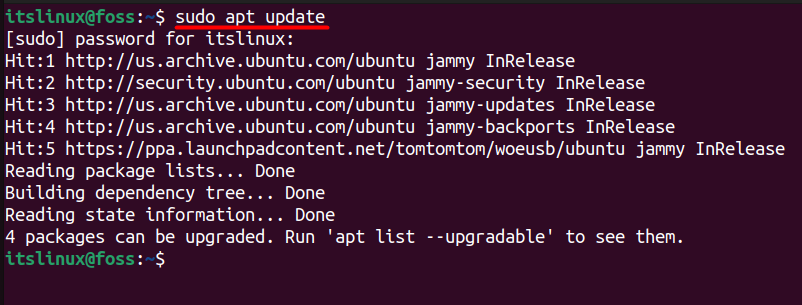
It’ll take a while to update the system repositories, depending on how long since the last update was installed.
Step 2: Install IDLE Python IDE
When the system repositories are updated, install the IDLE Python IDE using this command, and you’ll be asked to press “Y” to continue the process, as seen below.
$ sudo apt install idle3 |
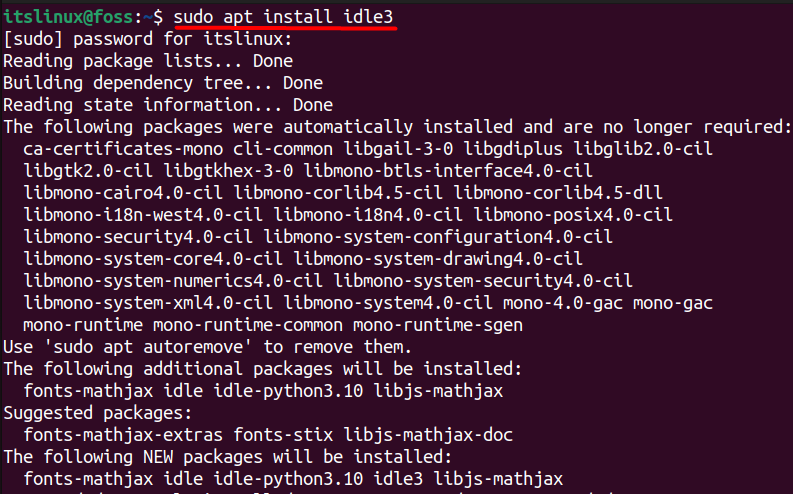
After a few seconds, the installation process will be completed, and you have installed IDLE Python IDE on your system.

After installing the IDLE Python IDE, it is time to start coding a simple program. To do that, you’ll need to launch it first using this command:
$ idle |
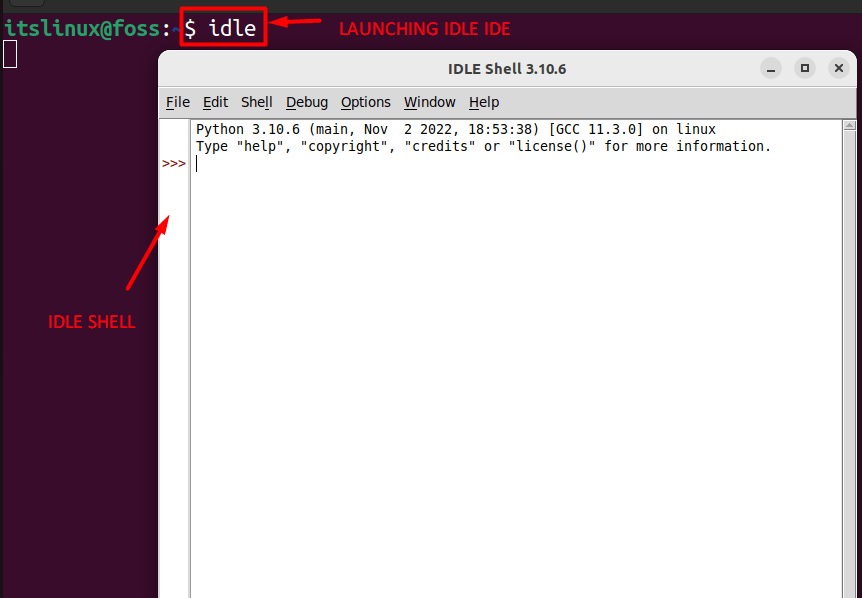
it will open up the Python shell and show the version of Python being run.
We’ll test it using a simple program to print output, as seen below.
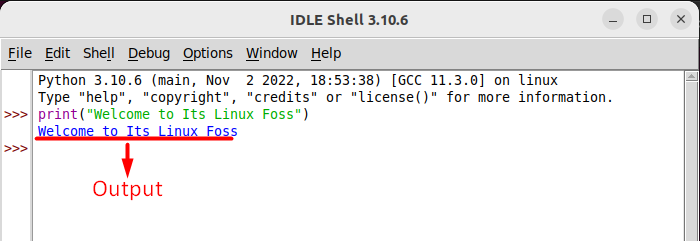
After entering the code, when you hit the enter key, the output will be displayed right after the code’s ending, as seen in the output above.
You can remove IDLE Python IDE on Ubuntu 22.04 by typing the following command below:
$ sudo apt remove idle |
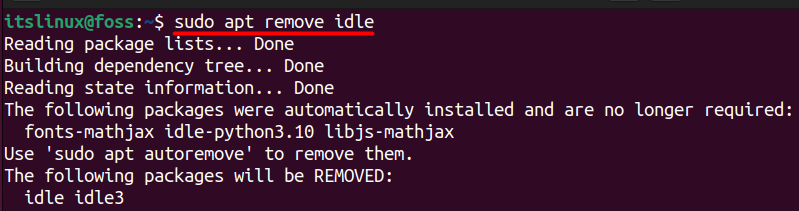
The installed version of IDLE IDE is removed from the system.
You can install Python IDLE IDE on Ubuntu 22.04 via terminal using the command “sudo apt install idle3”. The IDLE is quite easy to learn and implement, especially for users new to Python. Following this, the basic information and the installation method of IDLE are provided in this post.
